

Goal Alerts Faster Than Competitors: Building Instant Push Notifications
How goal notification apps work, where the delay comes from, and how to build your own instant goal alerts for Android, iPhone and Apple Watch with a live score API and Firebase.
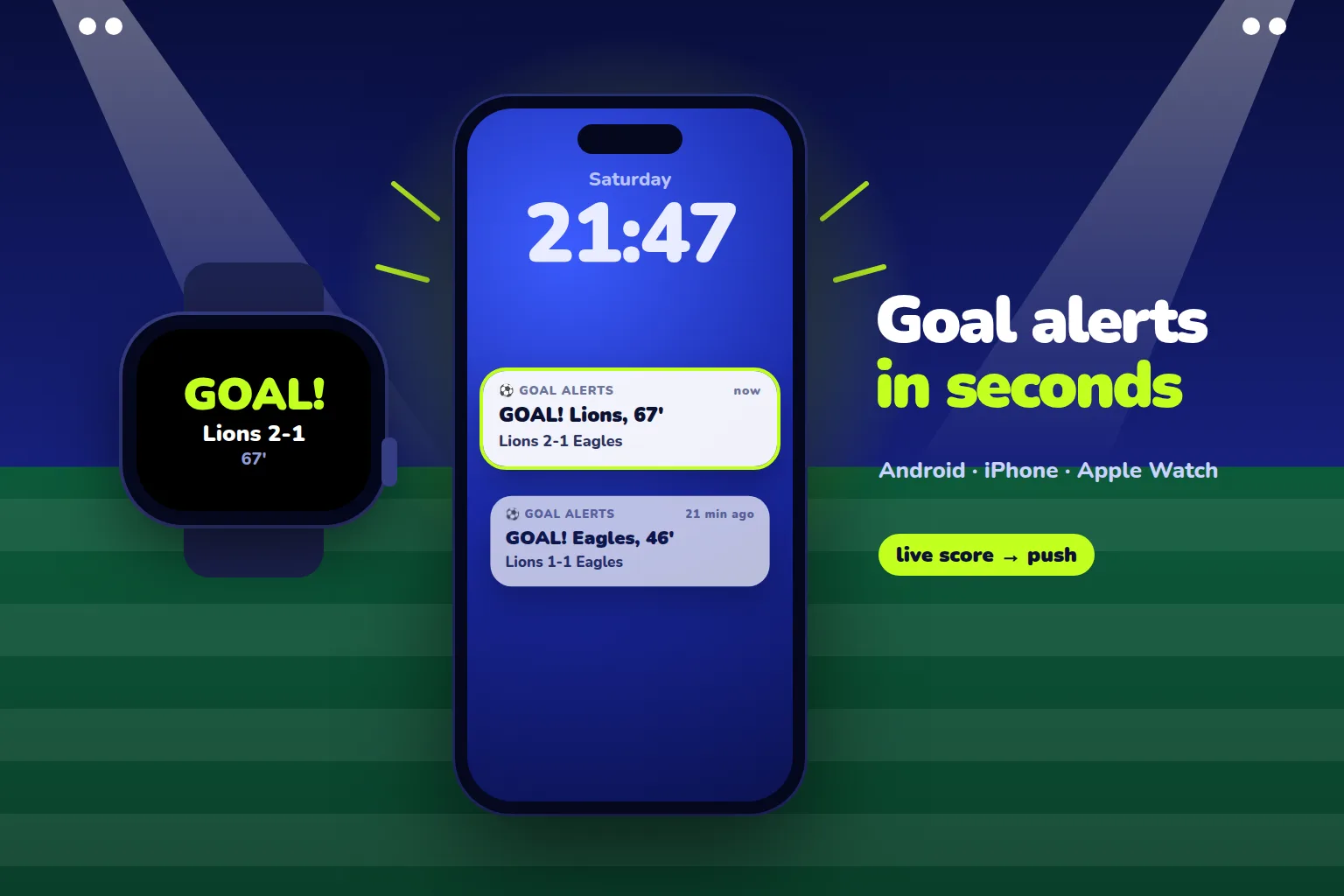
A goal alert takes three steps: your server notices the score has changed, finds the people who follow either team, and pushes a notification through Google and Apple. When a goal notifications app is slow, the phone is rarely to blame. Most of the delay comes from the first step: the server asks for the score too rarely, or checks every match with a separate request.
Here is a setup you can use to build your own goal alert app. Live scores for every football match come from the SportAPI sports odds and live score API in a single request every 7 seconds. The server compares each score with the previous one and sends pushes through Firebase Cloud Messaging, and the same alerts show up on Apple Watch and Wear OS watches without extra work. The data costs from $30 a month per sport, and a 2-day trial key lets you test it on real matches first.
Where goal alert delay comes from
Between the ball crossing the line and a buzz in someone’s pocket there are several stages. Your data provider controls only one of them; most of the delay sits in the stages you control.
| Stage | What it depends on | What you can do |
|---|---|---|
| The score changes in the API | The data source | Measure it with a trial key on real matches |
| Your server sees the goal | How often you ask the API | Poll the live list every 7 seconds: on average a goal waits about 3.5 seconds for the next poll |
| Your server decides who gets it | Your code | One pass over all matches, no request per match |
| Sending | How you send pushes | Firebase topics instead of looping over device tokens |
| Delivery to the phone | Google, Apple, battery saving | High priority on Android, Time Sensitive on iPhone |
Apps that deliver a goal a minute late usually lose that time in stages two and four. They check scores every 30–60 seconds, or they send alerts one device token at a time to a huge audience.
The architecture: one server, not every phone polling
The obvious idea is to let the app ask the API every few seconds. Don’t. Your API key would ship inside every install, a thousand users would mean a thousand identical requests, and iOS and Android suspend background network calls to save battery anyway. You can’t deliver a goal alert to a closed app that way.
The setup that works:
- Your server polls the API. One
eventsrequest returns every live match of the sport with its score, clock and period, whether 50 matches are in play or 400. - The server remembers the last score of each match and compares the new
score_fullagainst it. - In the app, a user taps “follow team”, and the phone subscribes to the Firebase topic
team_<team ID>. - When a score changes, the server sends one message addressed to both teams’ topics. Firebase delivers it to every follower on Android and iPhone.
Subscribing to teams rather than matches matters for another reason. In SportAPI a match has different game_id values in prematch and live: when the game kicks off, it appears in live under a new ID. The teams stay the same, so subscriptions built on opp_1_id and opp_2_id survive kick-off. The match data model explains how match IDs work.
How often to poll the API
The data update guidelines set minimum intervals for live data:
| Request | What it returns | Live interval |
|---|---|---|
events | Every live match of a sport with scores | no more than once every 7 seconds |
event | One match with all markets and statistics | no more than once every 5 seconds |
menu | The list of competitions | no more than once every 20 seconds |
For goal alerts, one events request every 7 seconds is enough. Calling event for every match won’t make anything faster; it just adds load. If your app has one headline match that most users follow, you can additionally poll that match with event every 5 seconds.
Send the next request only after the previous one has returned. If the API answers 429 Too many requests, wait the number of seconds given in the Retry-After header.
Server code: detect the goal, send the push
The example uses Node.js 18+ and firebase-admin. The SportAPI key and the Firebase service account file live in environment variables.
import admin from 'firebase-admin';

admin.initializeApp(); // credentials come from GOOGLE_APPLICATION_CREDENTIALS

const LIVE_URL = 'https://YOUR_API_DOMAIN/v1/events/1/0/sub/50/live/en';
const POLL_MS = 7000;
const scores = new Map(); // game_id → { home, away, seenAt }
let warmedUp = false;

function parseScore(value) {
  const match = /^(\d+):(\d+)$/.exec(value || '');
  return match ? { home: Number(match[1]), away: Number(match[2]) } : null;
}

async function poll() {
  const res = await fetch(LIVE_URL, { headers: { Package: process.env.SPORTAPI_KEY } });
  if (res.status === 429) {
    return Number(res.headers.get('Retry-After') || 10) * 1000;
  }
  if (!res.ok) return POLL_MS;

  const data = await res.json();
  const now = Date.now();
  for (const tournament of data.body ?? []) {
    for (const game of tournament.events_list) {
      if (game.game_id !== game.game_mid || game.game_dop_name) continue; // corners, cards and other sub-events
      const score = parseScore(game.score_full);
      if (!score) continue;

      const prev = scores.get(game.game_id);
      scores.set(game.game_id, { ...score, seenAt: now });
      if (!warmedUp || !prev) continue; // first time we see the match: just remember the score

      if (score.home > prev.home) await sendGoal(game, score, game.opp_1_name);
      if (score.away > prev.away) await sendGoal(game, score, game.opp_2_name);
      if (score.home < prev.home || score.away < prev.away) await sendCorrection(game, score);
    }
  }

  for (const [id, item] of scores) {
    if (now - item.seenAt > 10 * 60 * 1000) scores.delete(id); // the match left live a while ago
  }
  warmedUp = true;
  return POLL_MS;
}

async function loop() {
  let wait = POLL_MS;
  try {
    wait = await poll();
  } catch (err) {
    console.error(err);
  }
  setTimeout(loop, wait);
}

loop();
The send functions build the text and send a single message to the followers of both teams:
function fansOf(game) {
  return `'team_${game.opp_1_id}' in topics || 'team_${game.opp_2_id}' in topics`;
}

async function sendGoal(game, score, scorer) {
  const minute = Math.floor(game.timer / 60);
  await admin.messaging().send({
    condition: fansOf(game),
    notification: {
      title: `GOAL! ${scorer}, ${minute}'`,
      body: `${game.opp_1_name} ${score.home}-${score.away} ${game.opp_2_name}`,
    },
    data: { game_id: String(game.game_id) },
    android: { priority: 'high', collapseKey: String(game.game_id) },
    apns: { payload: { aps: { 'interruption-level': 'time-sensitive' } } },
  });
}

async function sendCorrection(game, score) {
  await admin.messaging().send({
    condition: fansOf(game),
    notification: {
      title: 'Goal disallowed',
      body: `${game.opp_1_name} ${score.home}-${score.away} ${game.opp_2_name}`,
    },
    data: { game_id: String(game.game_id) },
    android: { priority: 'high', collapseKey: String(game.game_id) },
  });
}
A few choices in the code are easy to miss:
- Warm-up after start. The first pass only records scores. Without it, a server restart sends users a batch of alerts for goals scored an hour ago.
- Main matches only. Sub-events such as corners and cards carry their own score. Filtering on
game_midandgame_dop_namestops a corner from being announced as a goal. - Disallowed goals. If the score goes down, the goal was ruled out after a video review. A short correction is better than silently showing the old score.
collapseKey. On Android a new alert for the same match replaces the previous one instead of stacking.- Minute from
timer. The field is in seconds, so divide by 60.
In the app, following a team is one line. This is the Flutter version; native Android and iOS apps call the same method from the Firebase SDK:
await FirebaseMessaging.instance.subscribeToTopic('team_$teamId');Building the app itself, with a live matches screen, is covered in our guide to a live scores app in Flutter.
Getting to the phone in seconds
Google and Apple don’t guarantee delivery times, but a few settings make a big difference.
Android. Messages sent with priority: 'high' are delivered right away, even when the phone is dozing. Normal priority can be held until the device wakes up. Use high priority only for messages that show a notification: if high-priority messages arrive without a visible notification, Firebase may lower their priority. Goals qualify; silent housekeeping messages don’t.
iPhone. The time-sensitive interruption level lets an alert break through a Focus mode if the user allows it. Turn on the Time Sensitive Notifications capability in your Xcode project for this to work.
Watches. Goal alerts on Apple Watch need no separate watch app: iPhone notifications appear on the watch when the phone is locked and the watch is on the wrist. Wear OS watches show phone notifications by default too. What you do need is a short title, because a watch screen fits little text. That’s why the team and the minute go in the title and the score goes in the body.
How to check your alerts really are faster
“Faster than the competition” means nothing until you measure it. One evening of top matches is enough:
- Install your app and the app you’re comparing against on the same phone.
- In both, follow teams that play tonight.
- Note the time of every goal alert in each app; screenshots of the notification shade will do.
- Collect at least 15–20 goals across different leagues and compare the average gap.
If your alerts lag, walk through the table at the top of this article. Your server logs show when the score changed in the API response and when the message went to Firebase.
Mistakes that make goal alerts late or wrong
- Polling the API from phones. The key becomes public, and the OS stops background requests anyway.
- Calling
eventfor every match. Hundreds of requests instead of one, and the score is no fresher. - No warm-up after a restart. Users get alerts for old goals.
- Treating sub-events as matches. Corners and cards turn into “goals”.
- Subscribing to
game_id. The match moves from prematch to live under a new ID, and the subscription is lost. - Looping over device tokens. With a large audience, the last users get the alert well after the first. Firebase topics handle the fan-out on Google’s side.
- Parsing every sport like football. Score formats differ by sport. For ice hockey (
sport_id2) the same setup works, but check the score format and overtime on a trial key. In basketball, an alert per basket is noise; send quarter results instead.
Building goal alerts on SportAPI
On the data side, a goal notifications app needs only a few things, and SportAPI covers them:
- the live score
score_full, periodperiod_nameand match clocktimerfor every live match of a sport in one request; - team IDs
opp_1_idandopp_2_idfor subscriptions, plus team logos for richer notifications; - the prematch line and the match calendar, so users can see fixtures and follow a team before kick-off;
- no monthly request quota, as long as you keep to the recommended intervals, so nothing runs out in the middle of a matchday.
What isn’t there: WebSocket. Data is delivered over REST and WebSocket support is in development, so your server learns about a goal on its next poll.
If you want alerts on your own conditions rather than goals alone (score, minute, statistics, odds), see our guide to a live signals bot.
How much it costs
| What you need | Price |
|---|---|
| Live scores and the line for one sport, e.g. football | from $30 a month |
| Each additional sport, e.g. ice hockey | from $30 a month |
| Firebase Cloud Messaging | free, according to Firebase as of October 2026 |
| Testing before you pay | A 2-day SportAPI trial key, all sports |
FAQ
What makes some goal alert apps faster than others?
Mostly the app’s own server: how often it checks scores and how it sends notifications. Checking once a minute, or sending to one device at a time, adds tens of seconds. Firebase itself is rarely the main cause.
Can I get goal alerts on my Apple Watch?
Yes. iPhone notifications appear on Apple Watch automatically when the phone is locked. You don’t need a watch app, just a short title that fits the screen.
How often can I request live scores?
The live match list (events) no more than once every 7 seconds, a single match (event) no more than once every 5 seconds. If your SportAPI manager has given you different intervals, use those.
Do I need my own server, or can the app do it alone?
You need a server. Without one, your API key ends up inside the app, and alerts can’t reach users while the app is closed. A small virtual machine is enough: one request every 7 seconds and sending through Firebase.
Does this work for ice hockey and other sports?
Yes, the setup is the same with a different sport_id. Score formats vary between sports, so check score parsing for each one on a trial key.
Can I test it before paying?
Yes. The 2-day trial key includes all sports and live data. Two evenings of matches are enough to run the server from this article and see how fast the alerts arrive.
What to do today
- Get a SportAPI trial key.
- Create a Firebase project and connect a test app to it.
- Run the server from this article during tonight’s matches and follow a couple of teams.
- Compare alert times with the app you use now.
Tell the SportAPI manager on Telegram you’re building a goal alerts app. You’ll get a trial key for SportAPI live scores and odds and can test the speed on real matches.