

A Live Scores App in Flutter: From API to App Store Release
Step by step: a live scores app in Flutter for Android and iOS — data from SportAPI, a live screen, auto-refresh, your own server for the key, and publishing to the app stores.
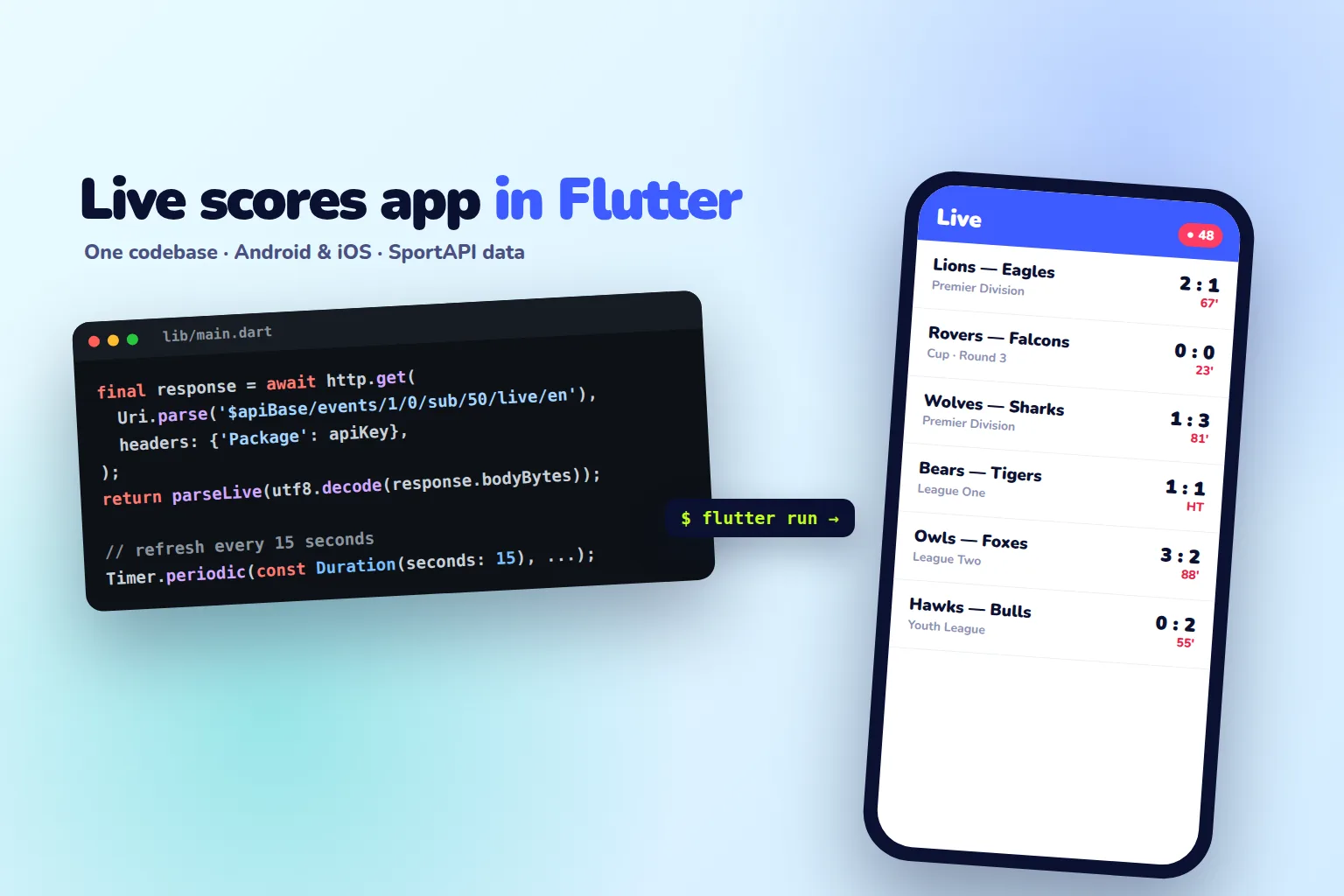
A live scores app is a great pet project and a common freelance order: a clear task, live data, and two platforms at once. With Flutter, one codebase runs on Android and iOS, and the data — live scores, match clock, statistics, schedules, and odds — comes from the SportAPI Sports Odds API: from $30 a month per sport, with a 2-day trial. Below is the path from the first API request to an app store release, with working code for the live matches screen.
What the app will have
| Screen | What it shows | SportAPI data |
|---|---|---|
| Live | Matches in progress: score, minute, competition | events with the live type |
| Today | The day’s fixtures | Match calendar |
| Match | Score, period, statistics: attacks, shots, corners, cards | event, the stat_list field |
| Favourites | Favourite teams and goal notifications | Live matches + your server |
One Live screen is enough for the first version, so that is where we start.
Architecture: why your own server sits between the app and the API
A mobile app is not a safe place for secrets: an API key built into the app can be extracted. So in production the app does not call SportAPI directly but goes through your small server:
SportAPI → your server (key, 7–15 second cache) → the app on thousands of phonesThat server has three jobs:
- It keeps the key. The SportAPI key never ships in the app.
- It caches. The server requests live matches every 7–15 seconds and serves one response to every user, so API load does not grow with your audience. The recommended refresh intervals are in the documentation.
- It sends notifications. It compares scores between requests and sends a goal push to users following a team.
For a prototype you can call the API directly, as in the code below, but switch the address to your server before release.
Step 1. Create the project
flutter create live_scores
cd live_scores
flutter pub add http
Step 2. The live matches screen
The whole screen is one file, lib/main.dart: a match model, API response parsing, the request, and a list that refreshes every 15 seconds and on pull-to-refresh.
import 'dart:async';
import 'dart:convert';

import 'package:flutter/material.dart';
import 'package:http/http.dart' as http;

// In production the app calls your own server, not SportAPI directly
const apiBase = 'https://YOUR_API_DOMAIN/v1';
const apiKey = String.fromEnvironment('SPORTAPI_KEY');

class LiveMatch {
  const LiveMatch({
    required this.tournament,
    required this.home,
    required this.away,
    required this.score,
    required this.minute,
  });

  final String tournament;
  final String home;
  final String away;
  final String score;
  final int minute;
}

List<LiveMatch> parseLive(String json) {
  final body = jsonDecode(json)['body'] as List;
  return [
    for (final tournament in body)
      for (final match in tournament['events_list'] as List)
        LiveMatch(
          tournament: tournament['tournament_name'] as String,
          home: match['opp_1_name'] as String,
          away: match['opp_2_name'] as String,
          score: (match['score_full'] ?? '') as String,
          minute: ((match['timer'] ?? 0) as int) ~/ 60,
        ),
  ];
}

Future<List<LiveMatch>> fetchLive({int sportId = 1}) async {
  final response = await http.get(
    Uri.parse('$apiBase/events/$sportId/0/sub/50/live/en'),
    headers: {'Package': apiKey},
  );
  if (response.statusCode != 200) {
    throw Exception('HTTP ${response.statusCode}');
  }
  return parseLive(utf8.decode(response.bodyBytes));
}

class LiveScreen extends StatefulWidget {
  const LiveScreen({super.key});

  @override
  State<LiveScreen> createState() => _LiveScreenState();
}

class _LiveScreenState extends State<LiveScreen> {
  List<LiveMatch> matches = [];
  Timer? timer;

  @override
  void initState() {
    super.initState();
    refresh();
    timer = Timer.periodic(const Duration(seconds: 15), (_) => refresh());
  }

  Future<void> refresh() async {
    try {
      final data = await fetchLive();
      if (mounted) setState(() => matches = data);
    } catch (_) {
      // no network — keep the last data and retry in 15 seconds
    }
  }

  @override
  void dispose() {
    timer?.cancel();
    super.dispose();
  }

  @override
  Widget build(BuildContext context) {
    return Scaffold(
      appBar: AppBar(title: const Text('Live')),
      body: RefreshIndicator(
        onRefresh: refresh,
        child: ListView.builder(
          itemCount: matches.length,
          itemBuilder: (context, index) {
            final match = matches[index];
            return ListTile(
              title: Text('${match.home} vs ${match.away}'),
              subtitle: Text(match.tournament),
              trailing: Text("${match.score}  ${match.minute}'"),
            );
          },
        ),
      ),
    );
  }
}

void main() => runApp(const MaterialApp(home: LiveScreen()));
The code passes flutter analyze, and parseLive is tested on a real live response from the SportAPI documentation. For a prototype the key is passed at build time: flutter run --dart-define=SPORTAPI_KEY=your-key. The response is decoded with utf8.decode so team names in any language display correctly.
Step 3. The match screen and statistics
When a match is tapped, open a detail screen. The event method returns every market of the match, and in live it also returns stat_list: attacks, dangerous attacks, shots on target, corners, cards, xG. Each stat comes with an ID, a name, and values for both teams, so comparison bars work well. Not every live match has statistics — show the block only when they arrive. Details are in the live statistics documentation.
Step 4. Schedule and favourites
The “Today” screen is built from the match calendar: one request returns every match of the sport until the end of the day, with top leagues first. Keep favourites on the device, and notification subscriptions on your server, which compares scores and sends pushes.
Step 5. Publishing to Google Play and the App Store
- Icon, name, and screenshots — show the Live screen with real matches.
- A privacy policy — both stores require it, even if you collect no personal data.
- Build:
flutter build appbundlefor Google Play andflutter build ipafor the App Store (on macOS with Xcode). - Category and age rating — “Sports” for a results app. If you show odds or accept bets, study the stores’ separate rules for such apps: a results-only app passes review more easily.
- Testing — release a closed beta and test the app during real matches.
Pet project or client work
For a portfolio, this app shows everything clients value: working with an external API, real-time data updates, screen state, and store publishing. And requests like “build a sports app” or “match results app” are common on freelance marketplaces: sports sites, clubs, and media want their own app. A finished project on real data is a strong argument in an interview or a proposal.
The most common mistakes
- An API key in the app build. It can be extracted — use your own server in production.
- Every phone calling the API. Without a caching server, a thousand users means a thousand identical requests.
- No network error handling. The connection drops on the subway — the app should show the last data, not an empty screen.
- Statistics for every match. Some live matches have none — do not show empty blocks.
- Refreshing too often. 15 seconds is enough in an app; more often wastes battery and data.
What it costs
| What you need | Cost |
|---|---|
| Live scores, schedules, statistics, and odds for one sport | from $30 a month |
| Proxy server | An inexpensive server or a cloud function |
| Publishing | Google Play and App Store developer fees |
| Testing before you pay | 2-day SportAPI trial key, all sports |
FAQ
Can I build a match results app without my own server?
For a prototype — yes, as in the example. For release — no: an API key in the app can be extracted, and without a cache the load grows with your user count.
Why Flutter?
One codebase for Android and iOS, fast UI development, and hot reload. For an app built around lists and data updates, it is the best fit.
How often should live scores refresh?
In the app — every 15 seconds or on pull-to-refresh. The proxy server can refresh more often, following the SportAPI documentation intervals.
Which sports can I show?
Any in the SportAPI line — football, ice hockey, tennis, basketball, esports, and more. Each sport is added separately under the plan.
Can I test it before paying?
Yes. The 2-day trial key includes all sports, prematch and live — enough to build the Live screen and watch the app work during matches.
What to do today
- Get a SportAPI trial key.
- Create a Flutter project and paste the Live screen code.
- Run the app during matches and check the updates.
- Add a match screen with statistics and today’s schedule.
- Before release, move the key to your own caching server.
Message the SportAPI manager on Telegram with the sports your app needs — you will get a trial key for the Sports Odds API and can build the first screen in an evening.