

Live Scores and Odds in Google Sheets: Connect an API Without Programming
How to get live scores, today's matches, and odds in Google Sheets and Excel that refresh on their own: a ready-to-paste script and a no-code Excel setup.
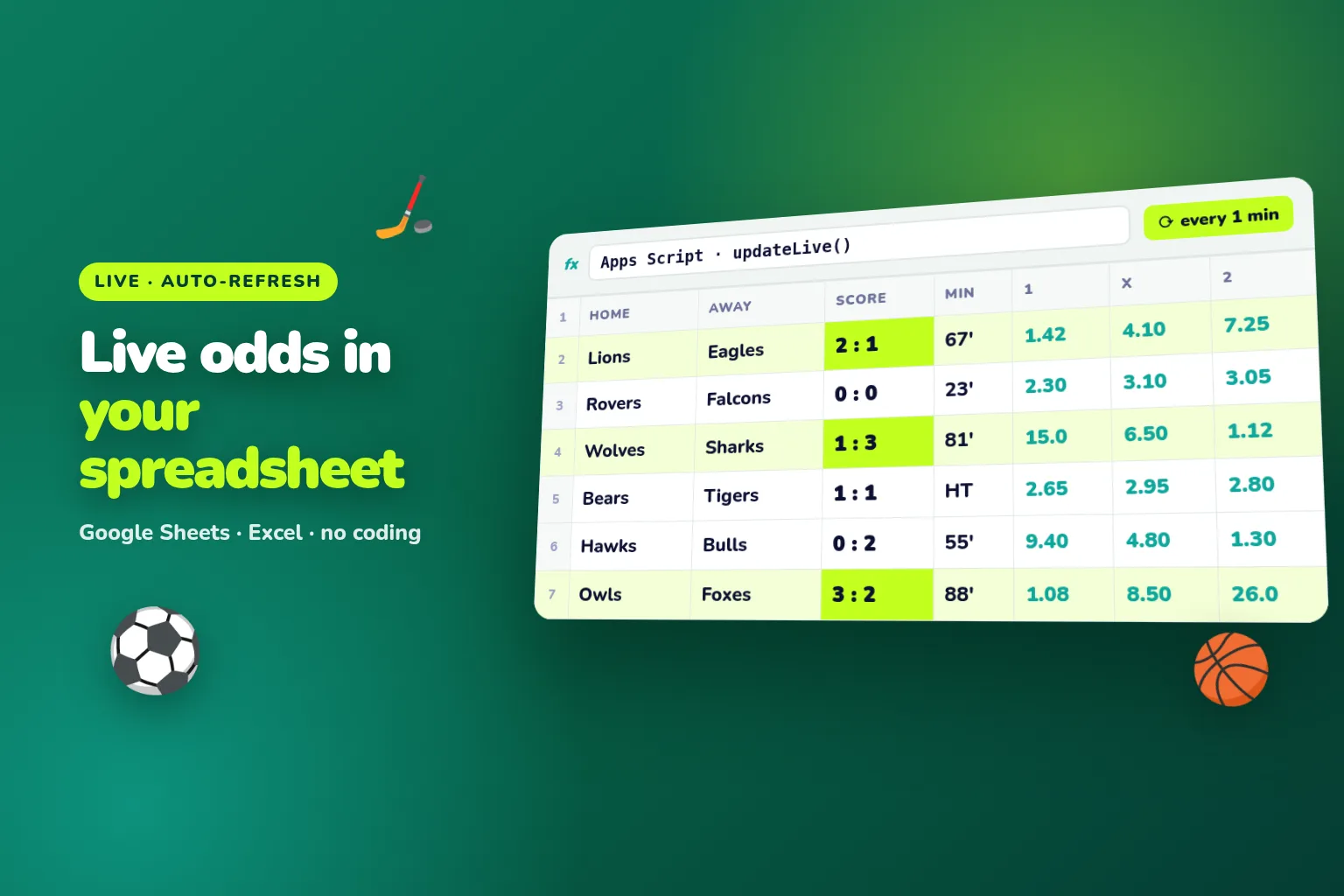
You can get live scores, today’s matches, and odds right in Google Sheets — refreshing every minute. No coding is needed: you paste the ready-made script from this article into your spreadsheet, put your SportAPI key in the settings, and the sheet updates itself. In Excel it is even simpler — the data connects with a few clicks in Power Query. The data source is the SportAPI Sports Odds API: matches, scores, and odds for one sport from $30 a month, and you can test it with a 2-day trial key.
Below: a step-by-step setup for Google Sheets and Excel, ready-made “Live” and “Today” sheets, and how to link them to your betting log.
What you will get
| Sheet | What it shows | Refresh |
|---|---|---|
| Live | Matches in progress: score, period, minute, 1 / X / 2 odds | Every minute |
| Today | All matches of the sport until the end of the day with odds | Every 15–30 minutes |
| My bets | Your log: the current score is pulled in for each bet | Automatically with formulas |
The spreadsheet becomes your workspace: compare odds, follow scores, and run your analysis without jumping between websites.
Why regular formulas do not work
Google Sheets has functions that load data from the web, such as IMPORTDATA. But they cannot send request headers, and the SportAPI key is sent exactly in the Package header — so it never appears in the request URL, browser history, or logs. That is why Google Sheets uses its built-in Apps Script tool: it can send headers and run on a schedule.
Google Sheets: a 10-minute setup
Step 1. Get a SportAPI key
Message the manager — the 2-day trial key includes all sports, prematch and live.
Step 2. Open Apps Script
In your spreadsheet choose Extensions → Apps Script. The editor opens: delete everything in it and paste the script from step 3.
Step 3. Paste the ready-made script
const API = 'https://YOUR_API_DOMAIN/v1';
const SPORT_ID = 1; // 1 is football; other sport IDs come from the menu method

function fetchMatches(path) {
  const key = PropertiesService.getScriptProperties().getProperty('SPORTAPI_KEY');
  const response = UrlFetchApp.fetch(API + path, {
    headers: { Package: key },
    muteHttpExceptions: true,
  });
  if (response.getResponseCode() !== 200) return null;
  return JSON.parse(response.getContentText()).body;
}

function mainOdds(match) {
  const odds = {};
  (match.game_oc_list || [])
    .filter((group) => group.group_name.toLowerCase() === '1x2') // in live the group is named 1X2
    .forEach((group) => group.oc_list.forEach((o) => (odds[o.oc_name] = o.oc_rate)));
  return [odds['W1'] || '', odds['X'] || '', odds['W2'] || ''];
}

function writeSheet(name, rows) {
  const book = SpreadsheetApp.getActive();
  const sheet = book.getSheetByName(name) || book.insertSheet(name);
  sheet.clearContents();
  sheet.getRange('A:Z').setNumberFormat('@'); // so a 2:1 score does not turn into a time
  sheet.getRange(1, 1, rows.length, rows[0].length).setValues(rows);
}

function updateLive() {
  const body = fetchMatches(`/events/${SPORT_ID}/0/sub/50/live/en`);
  if (!body) return;
  const rows = [['Match ID', 'Competition', 'Home', 'Away', 'Score', 'Period', 'Minute', '1', 'X', '2', 'Updated']];
  const now = new Date().toLocaleTimeString('en-GB');
  body.forEach((tournament) => tournament.events_list.forEach((match) => rows.push([
    String(match.game_id), tournament.tournament_name, match.opp_1_name, match.opp_2_name,
    match.score_full, match.period_name, String(Math.floor(match.timer / 60)),
    ...mainOdds(match).map(String), now,
  ])));
  writeSheet('Live', rows);
}

function updateToday() {
  const body = fetchMatches(`/events/${SPORT_ID}/0/sub/50/line/0/0/en`);
  if (!body) return;
  const rows = [['Match ID', 'Kick-off', 'Competition', 'Home', 'Away', '1', 'X', '2']];
  body.forEach((tournament) => tournament.events_list.forEach((match) => rows.push([
    String(match.game_id),
    new Date(match.game_start * 1000).toLocaleTimeString('en-GB', { hour: '2-digit', minute: '2-digit' }),
    tournament.tournament_name, match.opp_1_name, match.opp_2_name, ...mainOdds(match).map(String),
  ])));
  writeSheet('Today', rows);
}
The script creates two sheets: “Live” with matches in progress and “Today” with every match until the end of the day from the match calendar.
Step 4. Store the key in settings, not in the code
In the editor open Project Settings → Script properties and add a SPORTAPI_KEY property with your key. That way the key stays hidden from people you share the spreadsheet with.
Step 5. Turn on auto-refresh
Open Triggers → Add Trigger:
- function
updateLive, event source “Time-driven”, “Minutes timer”, every minute; - function
updateToday, “Minutes timer”, every 15 or 30 minutes.
On the first run Google asks you to allow the script to access the spreadsheet and external requests — confirm it. A minute later the “Live” sheet fills in and keeps updating itself.
Excel: connect without a single line of code
In Excel the header key is set right in the Power Query interface:
- Data → From Web → Advanced.
- Paste a request into the URL field, for example
https://YOUR_API_DOMAIN/v1/events/1/0/sub/50/live/en. - Under HTTP request header parameters enter the name
Packageand your key as the value. - In the Power Query editor expand
body, thenevents_list, and keep the columns you need: teams,score_full,period_name, odds. - Click Close & Load, then in the connection properties enable Refresh every 1 minutes.
Done: the Excel table updates itself while the file is open.
An analytics idea: odds history
The “Today” sheet is overwritten every time. If you want to see how odds moved, add one more function that copies the current values to the end of a “History” sheet once an hour with a timestamp. In a week you will have your own record of line movement: build charts, compare opening odds with odds before kick-off, and review your bets over time.
How to link it to your betting log
If you keep a betting log in a spreadsheet, add a “Match ID” column to it — copy the ID from the “Live” or “Today” sheet. Then the current score comes in with a formula:
=IFERROR(VLOOKUP(A2, Live!A:E, 5, FALSE), "not live")Here A2 is the match ID in your log and 5 is the number of the “Score” column on the “Live” sheet. One place shows your bet, the odds you took, and the live score.
Mistakes that break the spreadsheet
- The key in the script code. Anyone with access to the spreadsheet can see it. Keep the key in script properties.
- Refreshing more often than once a minute. Google Sheets triggers do not run more often anyway, and a spreadsheet does not need it.
- The score turns into a time. A spreadsheet may read “2:1” as 02:01. The script in this article sets the sheets to plain text.
- Too many sports on one sheet. Use a separate sheet per sport — the spreadsheet stays fast.
- Match ID as a number. Store it as text so lookup formulas work without errors.
What it costs
| What you need | Cost |
|---|---|
| Matches, scores, prematch and live, odds, short live statistics for one sport | from $30 a month |
| Google Sheets or Excel | Your regular account |
| Testing before you pay | 2-day SportAPI trial key, all sports |
FAQ
Do I need to know how to code?
No. For Google Sheets you copy the ready-made script and turn on a trigger; for Excel you fill in fields in Power Query. You only touch the code if you want different columns or another sport.
How often does the data refresh?
In Google Sheets — at most once a minute, which is the trigger limit. In Excel — also from one minute while the file is open. That is enough for tracking and analysis.
Can I show other sports?
Yes. Replace SPORT_ID with the ID of the sport you need from the menu method — ice hockey, tennis, or basketball, for example. A separate sheet per sport works best.
Can I get all markets of a match, not just 1 / X / 2?
Yes, with the event method and its full set of markets. But for a spreadsheet the main odds from the match list are usually enough and keep the sheet readable. Details are in the events method documentation.
Can I test it before paying?
Yes. The 2-day trial key includes all sports, prematch and live — enough to set up the spreadsheet and watch it update during matches.
What to do today
- Get a SportAPI trial key.
- Paste the script into Apps Script and save the key in script properties.
- Run
updateLivemanually and check the “Live” sheet. - Turn on the auto-refresh triggers.
- Add a “Match ID” column to your betting log and pull in the score with a formula.
Message the SportAPI manager on Telegram with the sports you need in your spreadsheet — you will get a trial key for the Sports Odds API and set up auto-refresh in one evening.